What is a Salary Report
The salary report in PayTask shows how much you earned in piecework pay for the selected period: by tasks, days, and weeks, taking into account multipliers, weekends, and currency. It helps combine task accounting, working time tracking, and salary calculation in one place for a worker, employer, or self-employed.
- Worker: sees how much they earned with a specific employer or with all at once.
- Employer: monitors payments for each worker and daily workload.
- Self-employed: sees how tasks affect income by day and week.
Salary report is built based on completed tasks marked on the task completion page and fully reflects the actual piecework salary.
How to Open a Salary Report
Via the Task Completion Page
- Go to the task completion page via the link https://paytask.ru/tasks/.
- At the top, select the desired user in the «Selected User» block (employer or worker).
- Click the «🤑 Salary Report» button.
From the «I am a Worker» Page
- Open the «I am a Worker» section via the link pages/worker.php.
- In the «My Employers» block, find the needed employer.
- Click the «🤑 Salary Report» button next to the selected employer.
From the «I am an Employer» Page
- Go to the «I am an Employer» page via the link pages/employer.php.
- In the «My Workers» section, select the needed worker.
- Click the «🤑 Salary Report» button for the corresponding row.
From the User Profile
- Open the user profile via a link like users/profile.php (e.g., from search or a list of workers/employers).
- At the bottom of the profile, find the block with report buttons.
- Use the buttons:
- «🤑 Salary Report for this worker» — if you are an employer.
- «🤑 Salary Report for my earnings with this employer» — if you are a worker.
User Selection and Report Period
The page https://paytask.ru/reports/pay.php shows a form whose settings determine which data will appear in the salary report.
User Selection Modes
In the «Selected User» dropdown, the following modes are available:
- Specific Employer — if you are a worker, you see entries like «Full Name of Employer (I work for …)».
- Specific Worker — if you are an employer, you see entries like «Full Name of Worker (they work for me …)».
- «All Employers» — a combined salary report for all your employers.
- «All Workers» — a combined report for all your workers.
This lets you either analyze piecework salary for a single person or view an overall picture across all connections.
Report Period Selection
Below are the «Report Start Date» and «Report End Date» fields. They define the period for which piecework salary and the number of completed tasks will be calculated.
- By default the current month in your time zone is selected.
- Maximum period — no more than one year between the start and end dates.
- Data safety: dates are validated, and on error you will see a clear message.
Click the «📄 Generate Report» button to build a salary report for the selected period.
Structure of the Salary Report by Periods
Summary Row for the Selected Period
Immediately below the form you will see a summary:
- «Total earnings for the entire period» — the sum of piecework salary for all selected tasks.
- «tasks completed …» — the number of marked tasks that fall into the calculation.
The currency is taken from the employer's settings, and if the mode «All Employers» or «All Workers» is selected — from the current user's settings. This is convenient if you keep records in your own currency.
Monthly Calendars
Next, the report shows a calendar for each month in the selected period. For each month:
- Month header — month name and year, total earnings and number of tasks for the month.
- Calendar table — rows by weeks and columns by days of the week.
- Week total — the weekly earnings sum is shown in the right column.
Each day cell contains:
- Month day.
- Piecework salary for that day with multipliers and completed tasks taken into account.
The current day is highlighted with a background for easier spotting. Week numbers help quickly navigate working time tracking and analyze how workload and earnings change week by week.
Transition to Daily Salary Report
Each day in the calendar is a link to a detailed daily salary report on the https://paytask.ru/reports/payday.php page. Clicking takes you to a breakdown of which tasks made up the sum for the selected date.
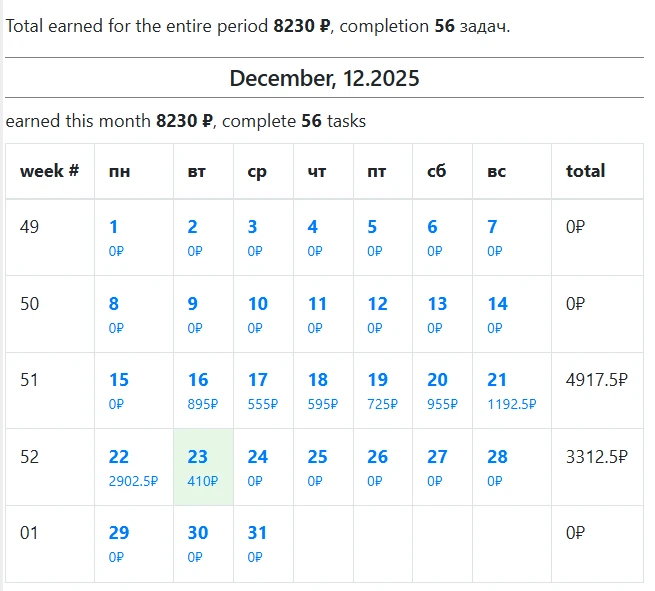
Calendar salary report by days and weeks.
Daily Salary Report (by Day)
The daily report is built on the https://paytask.ru/reports/payday.php page and shows a detailed breakdown of earnings for a single day. It is especially useful for dissecting contentious situations and calculating salary accurately.
Daily Report Header
The header displays:
- Selected mode (specific worker, specific employer, all employers, or all workers).
- Selected user (if the report is for a single person).
- Report date.
- Total earnings for these hours, minutes spent, and average earnings per hour.
This way you instantly see how efficiently the day went: how many tasks were completed, how much time was spent, and what the average income per hour of working time was.
Task Groups and Their Contribution to Salary
The following list shows task groups completed on that day:
- For each group, the name, group duration, and total earnings are shown.
- Separately, the minutes taken and which tasks contributed to this sum are displayed.
- There is a link to the task group's execution history to see changes over time.
If comments were added to a task group or specific tasks, they also appear in the daily report. This is convenient for explanations: what exactly the worker did, why it took more time, etc.
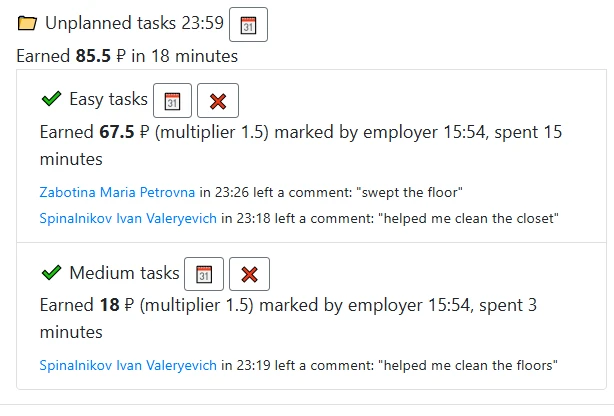
Individual Completed Tasks
Within each group, individual tasks are listed:
- Task name with a link to its execution history.
- How many times the task was completed (for recurring tasks).
- How many minutes the task took, if working time tracking by minutes is enabled.
- Who marked the task — worker or employer.
- Exact earnings for the task including multipliers and rates «for completion» and «per minute».
If you have the appropriate permissions, you can delete a task execution record, for example, if it was marked by mistake. This will immediately reflect in both the daily and the summary salary report.
Typical Use Cases
For the Worker
- Salary verification: compare the amount in the report for the month with the actual payment received.
- Day-by-day analysis: open the calendar and see on which days piecework salary was higher or lower.
- Workload control: use the daily report to see which tasks take the most time.
For the Employer
- Executor monitoring: see how much each worker earned over the period and per day.
- Payment planning: use the salary report as a basis for calculating salaries and bonuses.
- Process analysis: identify which task groups generate the highest load and cost, and optimize the process manager.
For Self-Employed and Freelancers
- Task tracking by clients and projects.
- Average rate analysis: the daily report easily shows average earnings per hour.
- Time planning: via the calendar see which weeks were the busiest.
Tips for Working with the Salary Report
- Mark tasks on the day of execution, so time and earnings data are as accurate as possible.
- Use the daily report for dissecting contentious situations: it shows which tasks and when were marked.
- Comment on task groups and tasks if you need to record agreements or special circumstances.
The more accurately tasks are tracked, the more precise the salary report works and the easier it is to control the actual piecework salary.