Why Task Execution History Is Needed
Task execution history shows who completed a task or a group of tasks and when, how many times, how many minutes were spent, and how much was accrued under piecework pay. It combines task tracking, time tracking, and payroll calculation in a single calendar available to both the employer and the employee.
- The employer sees team progress and amounts for each employee.
- The employee tracks their own income and workload.
The history is built on data from recorded completions and preserves the link “who, when, how much was earned.”
How to Open the Execution History
From Task or Group Comments
- Open the comments via the link https://paytask.ru/tasks/comment.php with the required task or group ID.
- In the actions block, click the “🗓️ Open task execution history” or “🗓️ … task group” button.
- If needed, pass the ewid parameter to immediately select the employer–employee pair.
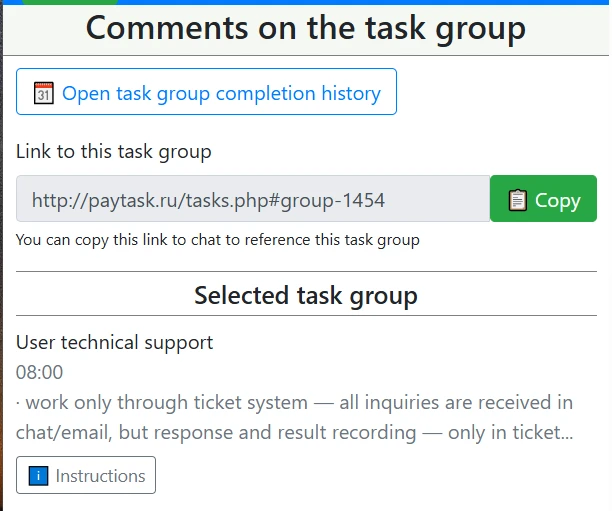
Navigating to history from comments.
From the Daily Report
- On the daily report page https://paytask.ru/reports/payday.php, open the required date.
- In the list of task groups, click the 🗓️ button next to a group or task.
- You will be taken to the history filtered by the same user and task.
What the History Page Shows
The taskhistory.php page opens for a single task or group. It adapts to the selected user and role.
Access Filters
- User selection: parameter (employer–employee pair), (specific employee), (specific employer), or allw for all employees of the employer.
- Permission check: the history is available only to those who are part of the employer–employee pair for this task or group.
- Time zone: times and dates are calculated according to the user’s time zone.
Execution Summary
- Total completions — count of all entries.
- Average time — average minutes per completion (actual time or the task average is used).
- First and last completion — help track trends.
- Earnings by employee — amount and number of completions per employee in the employer’s currency.
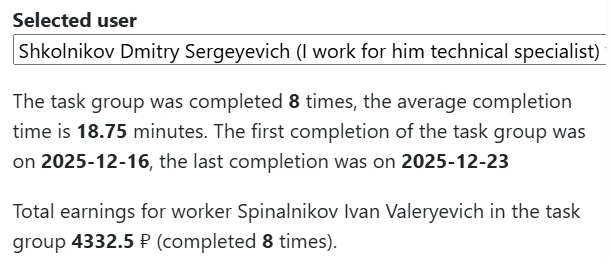
Execution Calendar
Below is a calendar broken down by months and weeks:
- Day shows the total earnings for the date and the day number.
- Week has a total amount for the row.
- Today highlight helps quickly find the current date.
- Go to daily report: clicking a day leads to https://paytask.ru/reports/payday.php with the required parameters and the task/group anchor.
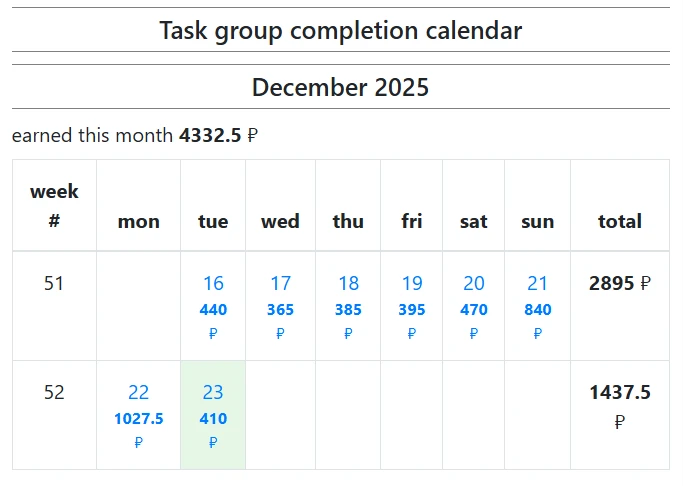
Task execution calendar with day-by-day navigation.
How to Read the Daily Report from History
Clicking a day opens the daily report, where execution details and comments are visible.
Day Header
- Mode: selected employee, employer, or “all.”
- Date and daily total with calculation of piecework pay, minutes, and average hourly rate.
Groups and Tasks
- Task group: name, group time, amount and minutes, 🗓️ button to return to history.
- Individual task: name, number of completions, minutes spent, multiplier, who marked it (employee or employer), exact amount.
- Deleting an entry is available to those with permissions (employer, employee, or a member of the pair).
Comments for the Selected Day
Below the tasks, comments left on the same day are displayed (date filter). The author, time in their time zone, and text are shown.
Helpful Tips
- Use the allw filter to compare all employees in the calendar and see total amounts.
- Check comments — they help explain deviations in time and amounts.
- Compare average time in the summary with actual minutes in the daily report to adjust benchmarks.
- Delete erroneous entries immediately in the daily report to keep history and payroll calculations accurate.
Open the history regularly to see task trends, improve processes, and make the task manager and process manager transparent.