The “Task Report” section in the Paytask service helps you control piecework pay, task tracking, and time tracking for recurring tasks between an employee and an employer. Here you can conveniently estimate approximate daily income, workload in minutes, and the detailed task structure, making Paytask both a task manager and a simple process manager.
Where to Find the Task Report
You can open the task report page in two ways:
- From the task execution page:
- Go to the “Task Execution” section.
- Select the “employer – employee” relationship from the dropdown list.
- Click the “🤑 Task Report” button — a link like https://paytask.ru/reports/tasks.php?ewid=... will open.
- From a user profile (by employer):
- Open the profile of the required user.
- Click the “✔️ Task Report for This Employer” button.
- A link like https://paytask.ru/reports/tasks.php?eid=... will open.
The report page is available even without authorization, so the link can be shared with an employee, accountant, or client.
Page Address and Link Copy Block
At the top of the report, the “Address of This Page” field and the “📋 Copy” button are displayed. This allows you to quickly copy a public link to the report.
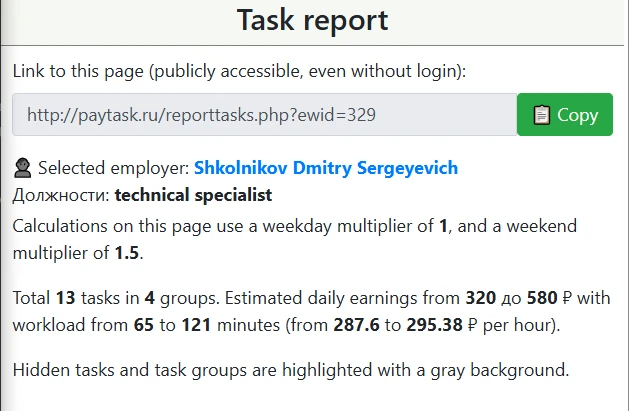
Report Settings: Employer, Positions, and Task Visibility
Employer–Employee Relationship Mode (ewid parameter)
If the page is opened via a link with the ewid parameter, the report is built for a specific “employer–employee” relationship and takes into account the positions and piecework pay multipliers assigned to that employee.
- Positions — displayed under the employer’s name and affect which task groups are included in the report.
- Weekday and weekend multipliers — used when calculating piecework pay:
- a separate multiplier for weekdays;
- a separate multiplier for weekends.
In this case, the calculation shows a more realistic piecework pay, tied to the employee’s actual settings.
Employer-Only Mode (eid parameter)
If you use a link with the eid parameter, the report is built for all tasks of the selected employer without being tied to a specific employee. In this mode, an additional filter by position is available.
- Select an employer via the profile.
- Follow the link https://paytask.ru/reports/tasks.php?eid=....
- In the dropdown list, select:
- “All positions” — to see a summary report for all positions;
- a specific position — to analyze tasks and wage calculations only for that role.
Hidden Groups and Tasks
In Paytask, an employer can hide individual task groups and tasks to show them only after an invitation is accepted or to exclude them from the general list.
- If you are the employer or the employee in the selected relationship, hidden items are displayed with a gray background.
- If you are viewing the report “from the outside” (without a relationship), some hidden tasks will not be visible, and a warning about possible hidden tasks will appear at the top.
This affects only the display; the calculations within the employer–employee relationship take into account all relevant tasks according to the settings.
Earnings and Time Summary
Under the selected employer, a key summary is displayed to help assess potential piecework pay and workload.
- Number of tasks and groups — shows how many tasks and groups are included in the calculation.
- Approximate daily earnings (minimum and maximum) — two amounts:
- minimum daily earnings if only mandatory daily tasks are completed;
- maximum earnings if all tasks are completed, including additional ones.
- Time in minutes — the minimum and maximum time required to complete all included tasks.
- Hourly pay range — approximate hourly income calculated for the minimum and maximum scenarios.
This block allows you to quickly evaluate how profitable the current workload is and how wage calculation correlates with time tracking.
Report Structure: Daily and Non-Daily Tasks
The report divides tasks into two logical parts, simplifying task tracking and day planning.
“Daily Tasks” Section
This section includes groups that are configured as daily. For them:
- a set of weekdays on which the group is relevant is specified;
- tasks are usually performed every workday or on a regular schedule;
- calculations for these tasks often fall into the “minimum” piecework pay scenario.
“Non-Daily Tasks” Section
This section displays groups marked as non-daily — for example, one-time or periodic work.
- Such tasks may be performed once every few days, weeks, or on special occasions.
- They increase the maximum possible income but are not always part of the base daily plan.
Information for Each Task Group
Each task group in the report shows several important parameters at once:
- Group name and time — a reference for when during the day to perform tasks.
- Days of the week — a list of days when the group is relevant (for example, weekdays only).
- Group type — daily or non-daily.
- Total pay for the group — the maximum piecework pay for all tasks in the group, taking multipliers into account.
- Total required time — the sum of average minutes for the group’s tasks.
- Positions — which set of roles the group is intended for (if eid mode and a position filter are selected).
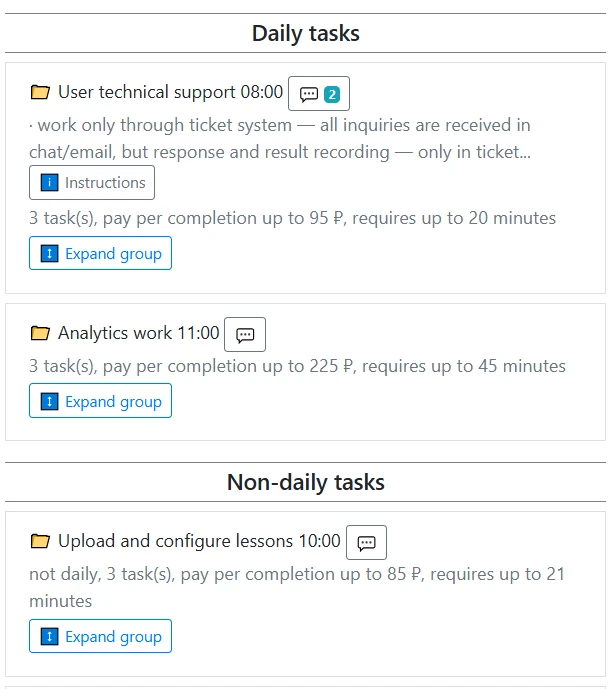
list of groups in the task report
Task Details Within a Group
Main Task Parameters
Under each group, you can expand the list of tasks using the “↕️ Expand Group” button. For each task, the following are displayed:
- Task name (sometimes marked as “important”);
- Payment for completion — a fixed amount per completion;
- Payment per minute — used when a task is paid by time;
- Average execution time — a guideline in minutes for planning the workday;
- “Multiple times” indicator — the task can be performed multiple times during the selected period;
- Frequency — if the task is set to “every N days,” this is indicated separately.
This level of detail is useful when you need to verify a specific set of operations and understand which tasks contribute to which part of the piecework pay.
Instructions and Comments
Text instructions and comments can be set for groups and tasks.
- The “ℹ️ Instruction” button opens a detailed description of how to perform the task or group.
- The button with the “💬” icon leads to the comments page:
- employer and employee can discuss task details;
- a comment counter is displayed, helping to identify where there is active discussion.
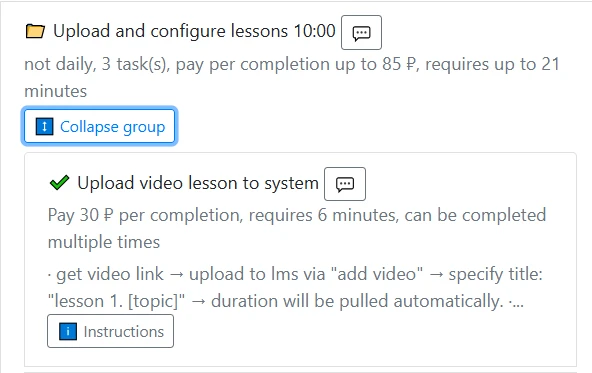
expanded group with a task inside and the “ℹ️ Instruction” and “💬” buttons
Practical Use of the Report
For the Employer
- Check how configured groups look for a specific position and employee.
- Evaluate whether the piecework pay matches the actual volume of tasks and time.
- Use the report as a task manager and process manager when planning new groups and tasks.
For the Employee
- Estimate how much can be earned per day by fully completing the list.
- Compare time tracking and wage calculation: how many minutes and hours tasks take.
- Use the report page together with the https://paytask.ru/tasks/ section to plan your day and monitor completion.
Example Scenarios
A new employee accepted the invitation:
- The employer sends a link like https://paytask.ru/reports/tasks.php?ewid=....
- The employee sees the full set of tasks, including hidden ones, and understands how their piecework pay is formed.
Evaluating a new position:
- The employer opens the report using eid and selects the required position.
- Reviews the daily earnings range and number of minutes to adjust rates or workload.
Summary
The “Task Report” section is a key Paytask tool for transparent task tracking, piecework pay calculation, and analysis of time tracking. Use it together with user profiles and the task execution section to see the full picture of processes and make informed compensation decisions.